
When you create a new voting campaign on Packet Africa, it is automatically saved in Draft status. This allows you to fully set up your contestants, categories, rules, and images before making the campaign visible to the public.
Many users finish adding everything but struggle to find where to switch the campaign from Draft to Active. This guide shows you exactly how.
Step 1: Log into Your Dashboard
- Go to the Packet Africa dashboard: https://app.packetafrica.com/dashboard
- Log in with your email and password.
Step 2: Go to the Voting Section
- On the left sidebar.
- Click Voting.
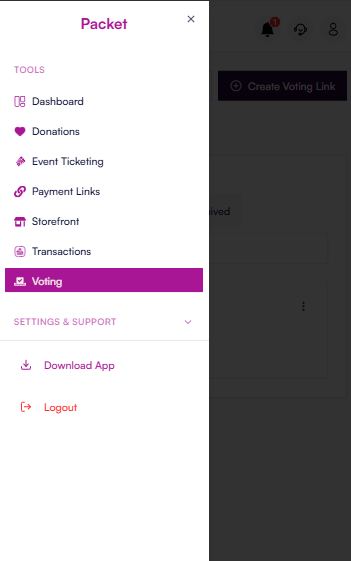
This takes you to your list of voting campaigns: https://app.packetafrica.com/dashboard/voting-links
Step 3: Open the Voting Campaign You Want to Publish
- Find the draft voting link in your list.
- Click on it to open the campaign overview page.
Step 4: Open the Edit Voting Screen
On the campaign overview page, look at the top navigation bar:
- Click Voting Details (or the small dropdown arrow next to it).
- Select Edit voting link.
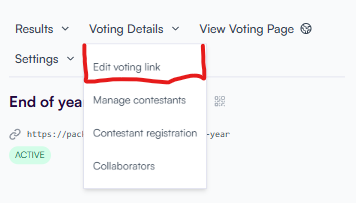
You will now enter the editing wizard.
Step 5: Change the Status from Draft to Active
You will land on the first section: Details.
Under Campaign Info, you will see:
- Status of the voting campaign
- Click the dropdown menu.
- Select ACTIVE.
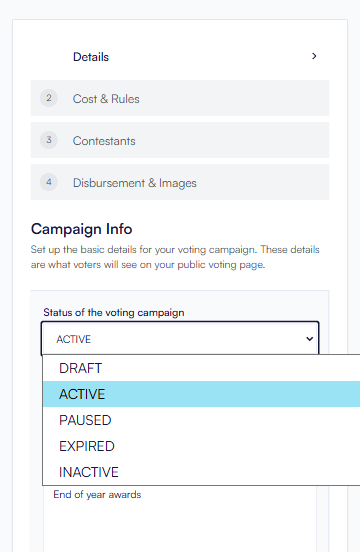
Tip: The Description field below the status is what voters will see on your public voting page. Update it now if needed.
Step 6: Review the Other Sections (Recommended)
The edit screen has four sections:
- Details (you just updated the status here)
- Cost & Rules
- Contestants
- Disbursement & Images
Click the Next button at the bottom to move through each section.
This is a good time to do a final review of your contestants, rules, and images before going live.
Step 7: Save Your Changes
- Scroll to the bottom of the page.
- Click the purple Save Changes button.
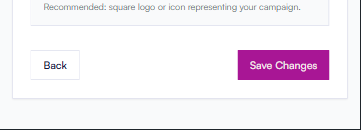
Your voting campaign is now Active and live!
What Happens After You Publish?
- Your public voting page becomes accessible to voters.
- You can monitor results in real-time from the Results tab.
- You can pause the campaign anytime by editing it again and changing the status to PAUSED.
Quick Tips
- Always add all contestants and categories before activating the campaign.
- You can also edit your voting link slug (URL) in the Details section — look for the field with the green checkmark.
- Test your public page by clicking View Voting Page before or after activating.
Still Need Help?
If you can’t find the option or run into any issues, contact our support team directly from your dashboard.